How to remove the Liquid Web Menu from your WordPress Dashboard
A recent update was made to Kadence Pro plugins, adding a new menu item from Liquid Web (the parent company of Kadence) titled “Liquid Web” under the “Dashboard” menu item, top left.
If you’d like to remove this menu item from your dashboard, follow these steps:
- Install the WP Code Lite plugin (if you don’t already have it.)
- Open “Code Snippets” from your dashboard sidebar.
- Click the “Add New” button to add a new snippet.
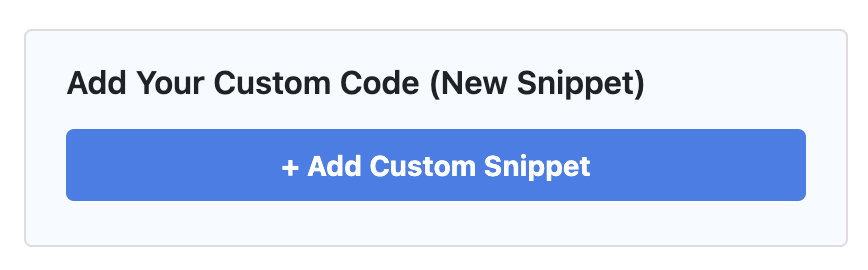
- Hover over “Add Your Custom Code (New Snippet)”
- Click the “Add Custom Snippet” button.
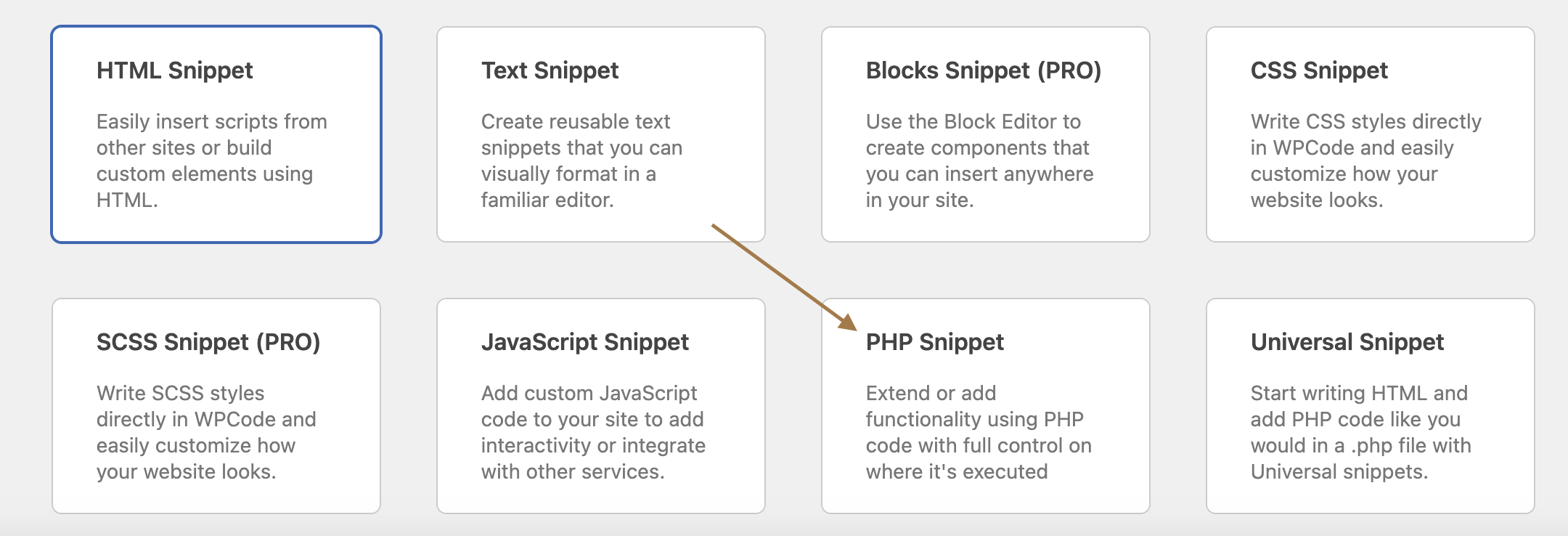
- Select the “PHP Snippet” option:
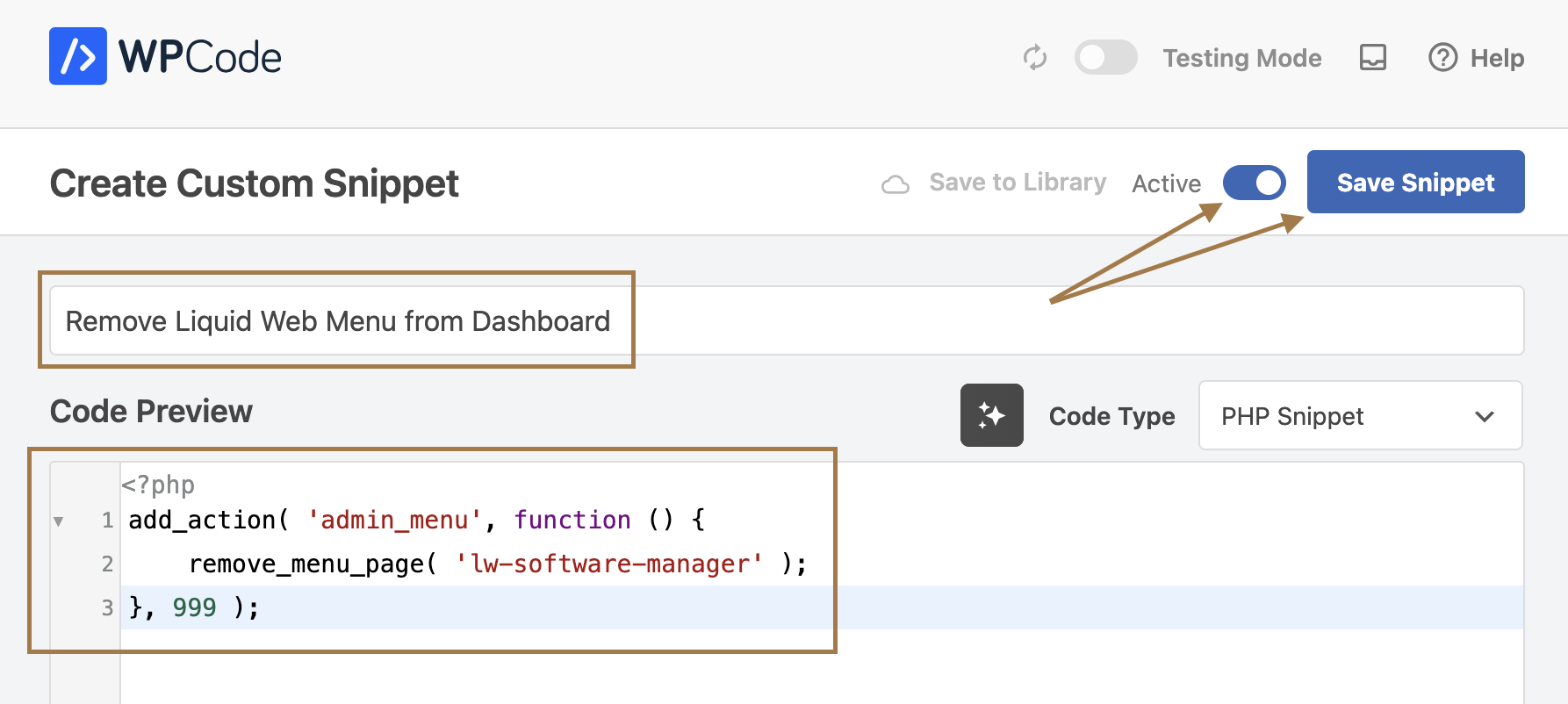
- Add the title: Remove LiquidWeb Menu from Dashboard.
- Copy/paste the code below to the Code Preview field:
add_action( 'admin_menu', function () {
    remove_menu_page( 'lw-software-manager' );
}, 999 );- At the top, click “Inactive” to change to “Active.”
- Click “Save Snippet.”