CPDS – How to Import Colors
Step-by-step Guide:
- Click the Import button at the top of the Color Palette Design Studio.

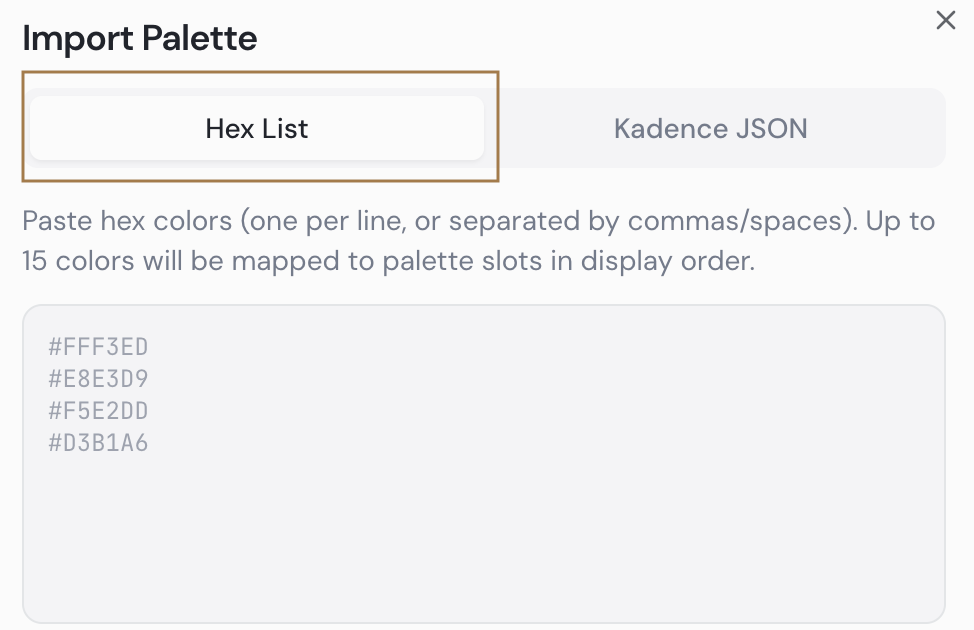
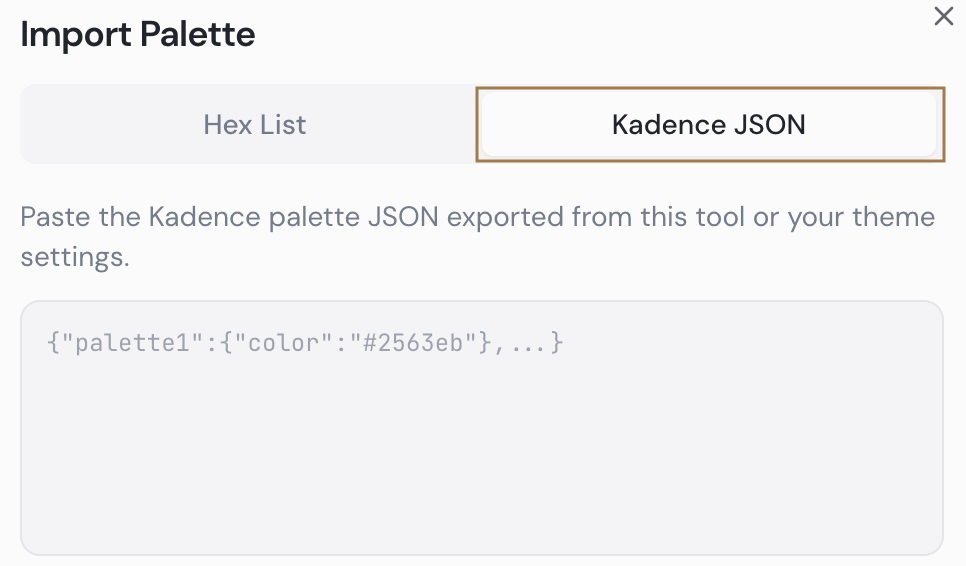
- Choose one of two import methods:
Hex List — Type or paste your hex color codes into the field, either one per line or separated by commas.
Import from Kadence — If you already have a color scheme set up in your Kadence theme, export it first by going to Appearance > Customize > Colors & Fonts > Colors > Palette, then clicking the folder icon and copying the export code. Paste that code into this import tab.
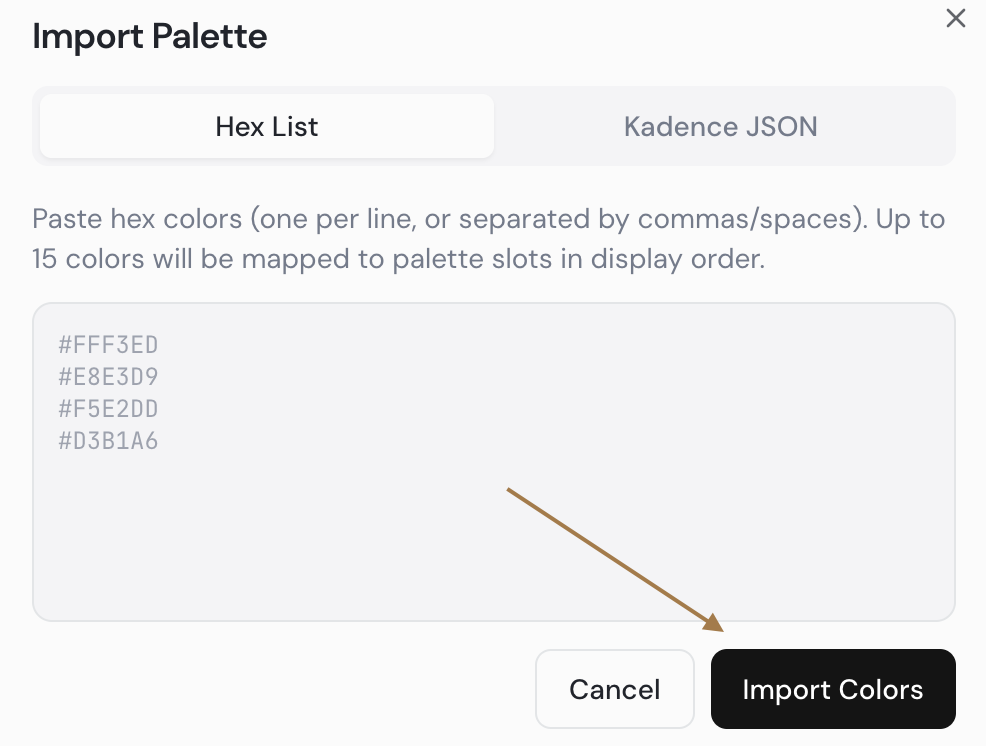
- Click Import Colors. Your colors will populate the first available slots in the Generated Palette in the order they were entered.
NOTE: The imported order is just a starting point — colors can be rearranged after import. Refer to Tutorial 3 (Working Through Errors) to adjust slot assignments and resolve any errors.