CPDS – How to Export Colors
Step-by-step Guide:
- Once your palette is finalized, click the Export button at the top of the Color Palette Design Studio.

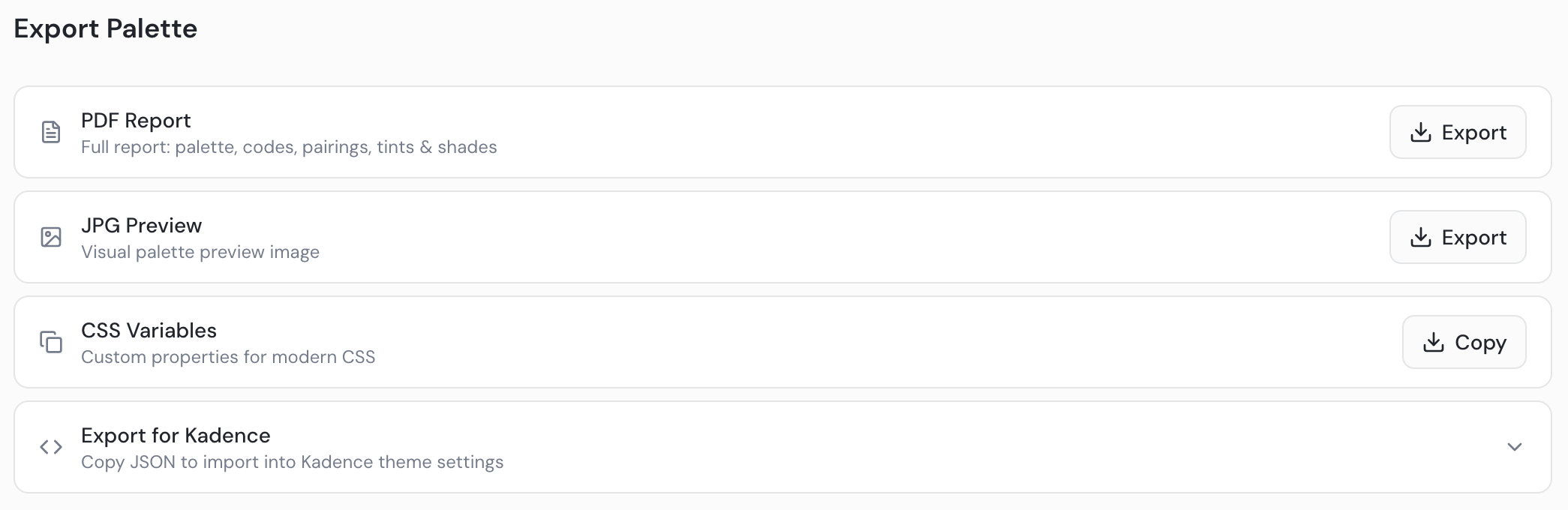
- Choose from the four export options:
PDF Report — A full branded document with hex, RGB, CMYK, and HSL color codes, all approved accessibility pairings, and tints/shades for every palette color. Ideal for sharing with clients as a complete brand color reference.
JPEG Preview — A simplified visual showing color codes and approved pairings. Quick and easy for a visual overview.
CSS Variables — Code-ready color variables for developers or for pasting into AI tools for design projects. Click to copy to clipboard.
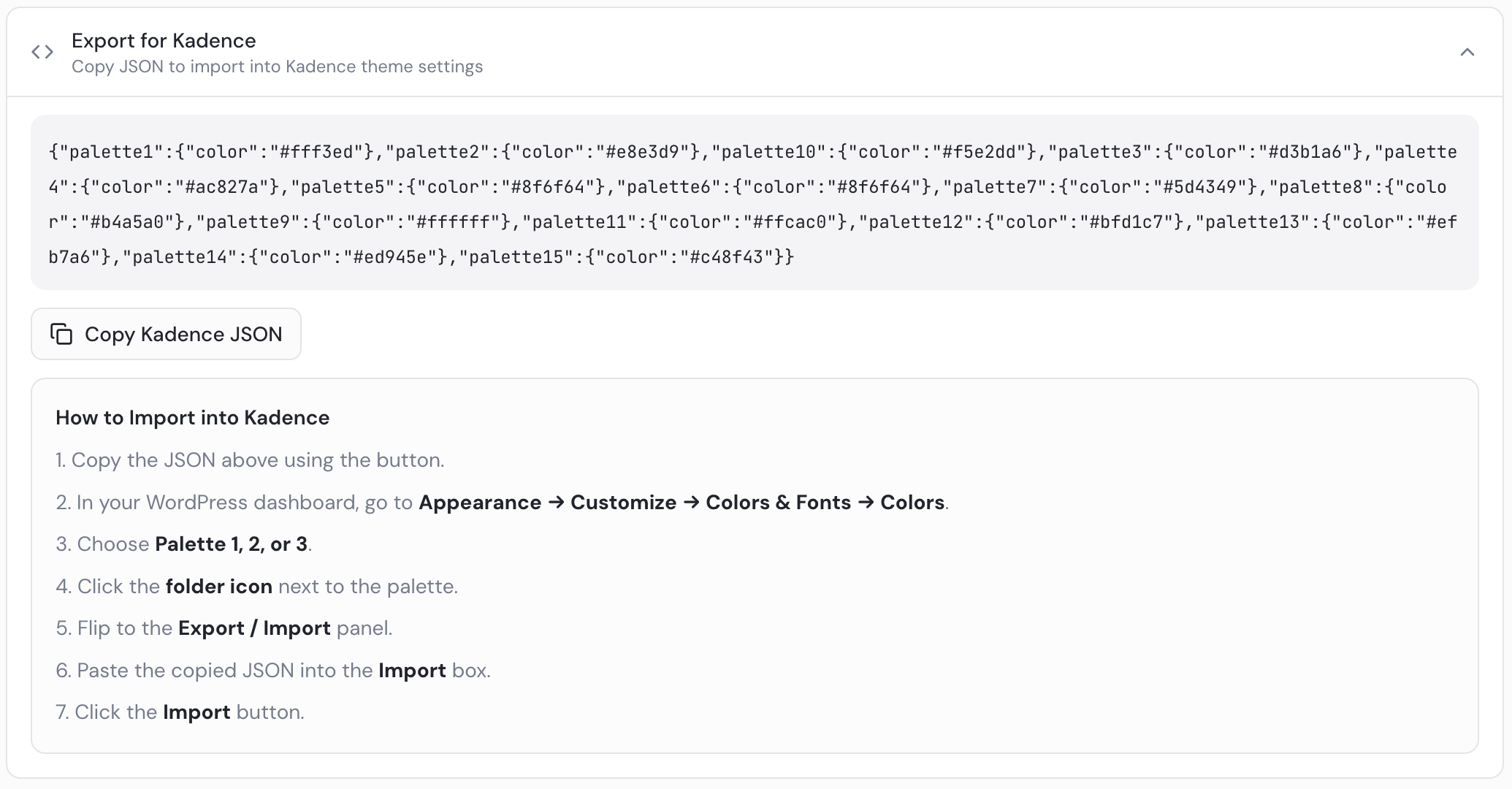
Export for Kadence — The most-used option. Copies a code snippet to your clipboard that you paste directly into your Kadence theme to automatically update all palette colors at once.
- For the Kadence export: copy the code, then follow the on-screen instructions to paste it into the correct location in your Kadence theme settings. Your entire color palette will update automatically.