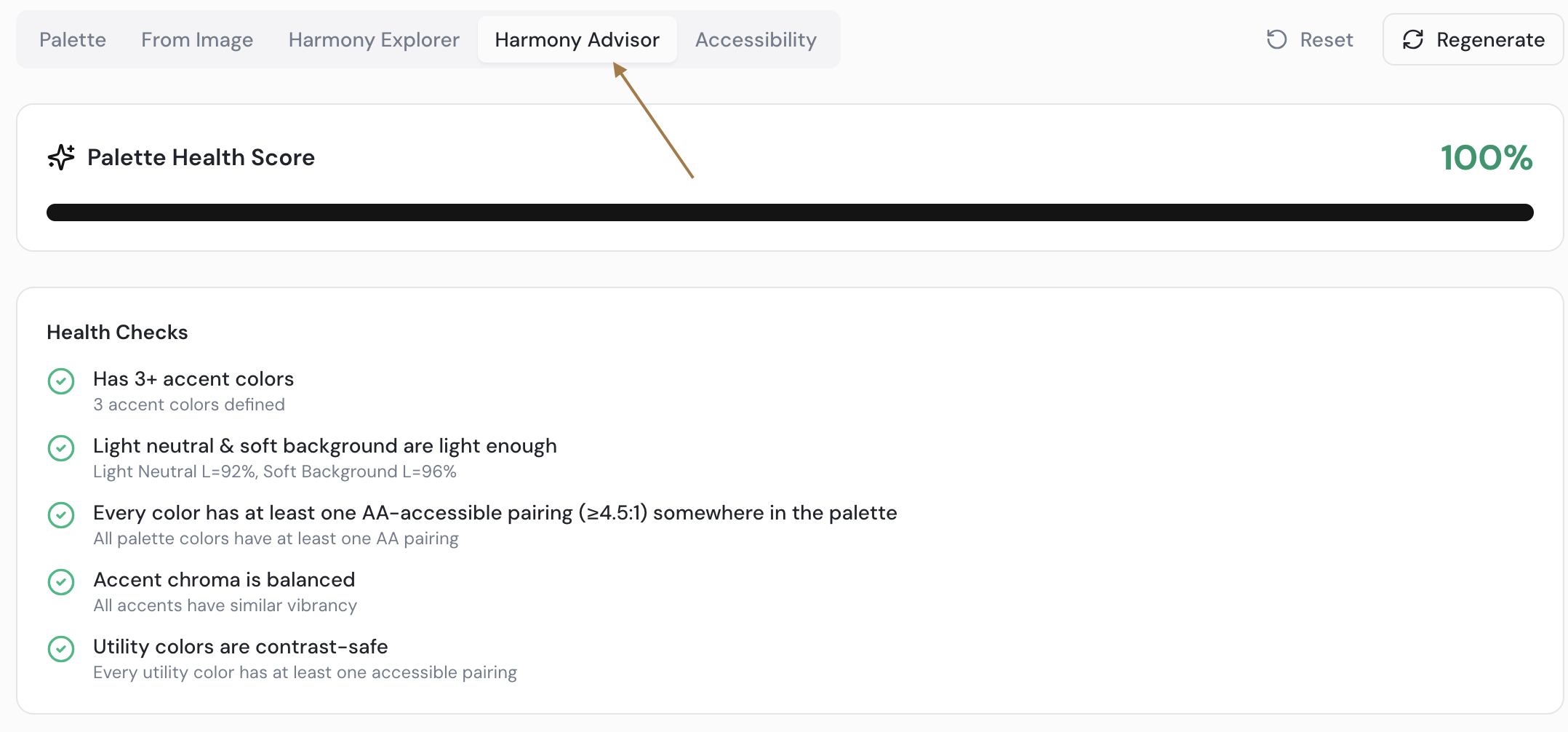
CPDS – How to work with the Harmony Explorer
Step-by-step Guide:
- Open your palette. Identify any empty color slots at the end of your palette that still need to be filled or changed.
- Click on the Harmony tab/button to open the Harmony Explorer.

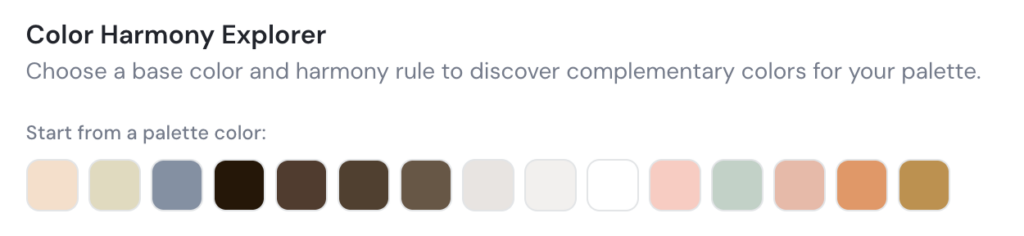
- Click on any existing color in your palette at the top of the panel. This uses that color as the basis for generating harmonious options.
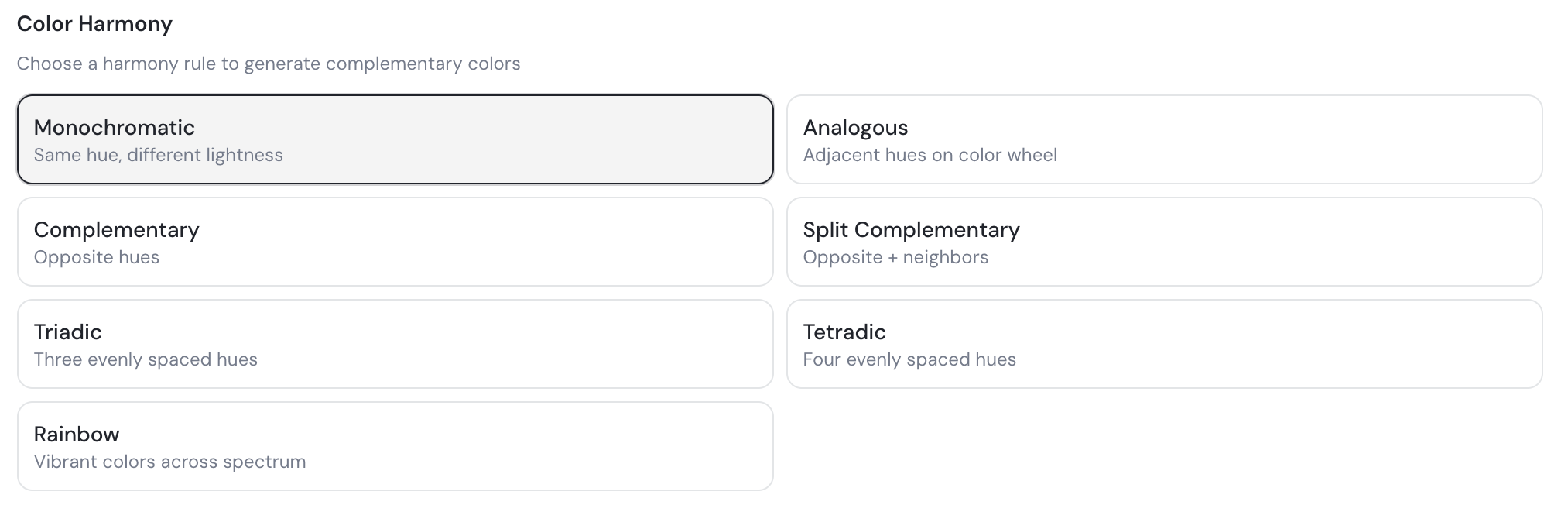
- Choose a harmony type from the available options: Monochromatic, Complementary, Triadic, Rainbow, and more. The tool will generate color suggestions based on your selection.
- Browse the suggested colors and click on one you like to select it.
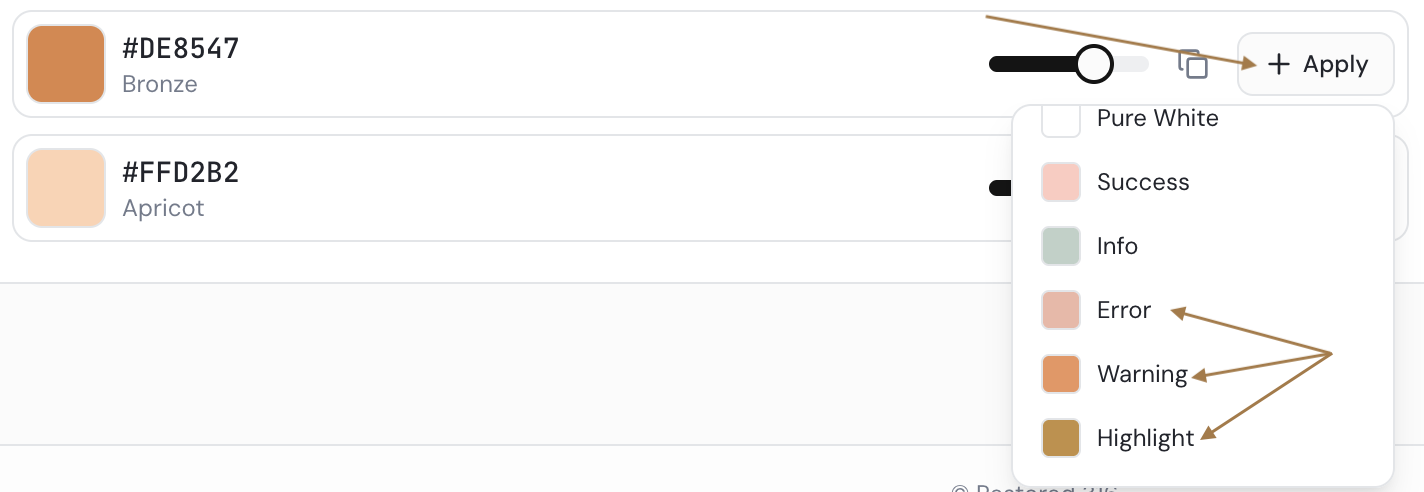
- Click Apply, then choose which color slot in your palette you want to assign it to (e.g., Error, Warning).
- Repeat for any remaining empty slots, selecting different base colors and harmony types as needed to build a balanced, cohesive palette.
- Check the Harmony Advisor to confirm all your colors are balanced. Look for the Accent Chroma indicator — all colors should be in harmony.